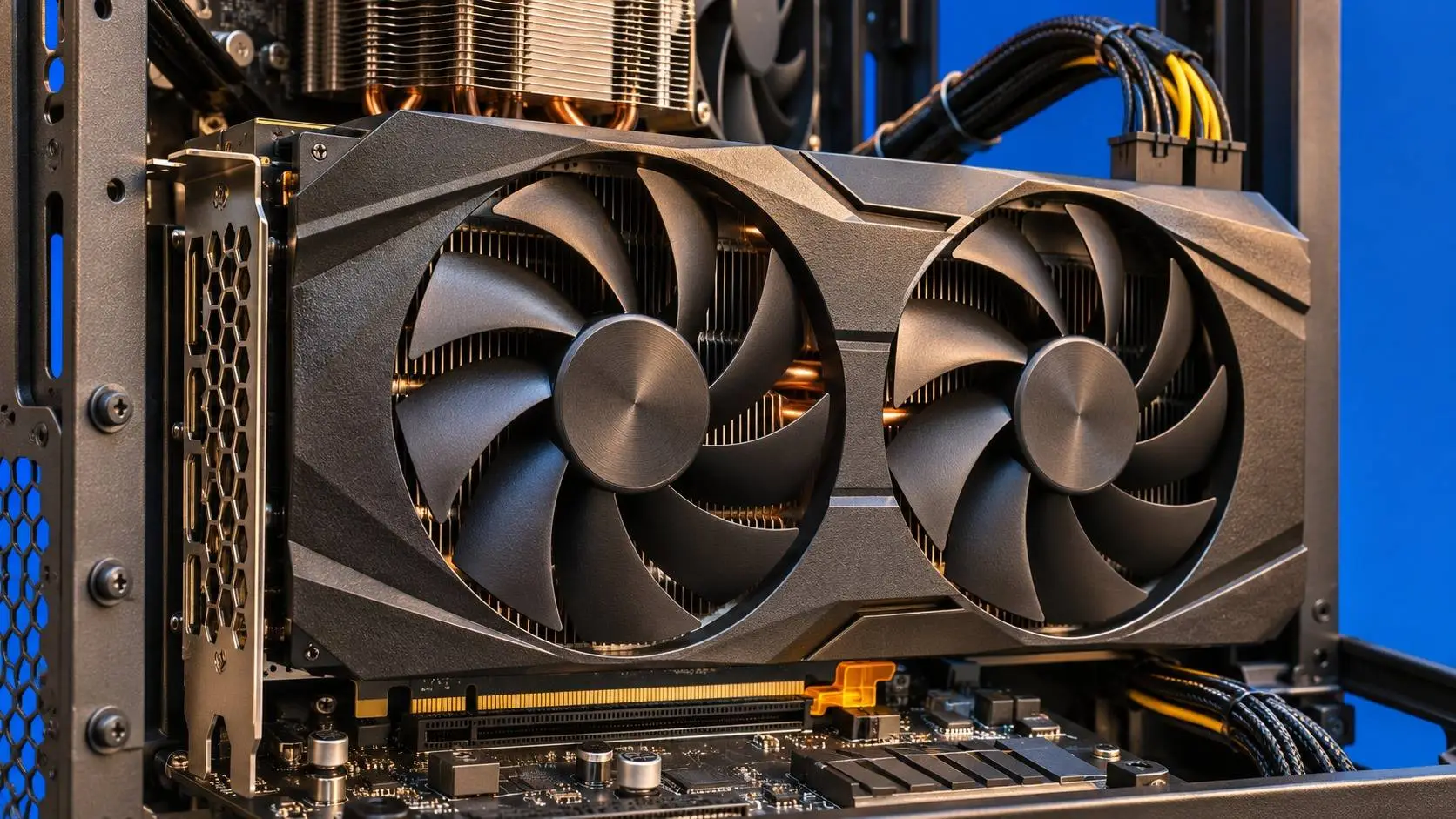
Ollama not using your GPU? Load a small local model and run ollama ps. If the small model uses the GPU and your usual one falls back to the CPU, check memory and context first. If both use the CPU, check whether Ollama can see your GPU.
Ollama not using your GPU? Read the processor split
Open a terminal and run ollama run qwen3:0.6b. Ask it to write one short sentence. Leave the chat open and run ollama ps in a second terminal. The Ollama model page lists the model at about 523 MB. That is its download size.
- No model listed. Send another prompt. Check while the model is loaded and make sure both terminals point to the same server.
- 100% GPU. Ollama loaded the model into GPU memory. The CPU can still do work around the model.
- CPU/GPU split. Part of the model is on the GPU. Try a shorter context or a smaller model to see if more of it fits.
- 100% CPU. The model is in system memory. Compare this reading with the small model before you change a driver.
These readings show where the model loaded. See Ollama’s FAQ for details. If speed is the issue, try the same prompt twice. The first call may take longer while the model loads.
If the small model uses your GPU, check memory
Close other apps that use GPU memory. Try the affected model with a short prompt and a lower context. In an Ollama terminal chat, use /set parameter num_ctx 2048. Run ollama ps again and compare the context and processor values. Restore the context your work needs once you know what changed.
A longer context needs more memory. A download can fit on disk and still be too large for the GPU. Read Ollama’s context guidance and our local AI hardware guide. If the split stays the same, try a smaller local model.
If every model uses the CPU, check GPU support
- NVIDIA. Run nvidia-smi -L to see if the driver lists your card. Match the card and driver to Ollama’s GPU support list. If it worked before a Linux machine went to sleep, restart and test the small model again.
- AMD. Look up the exact card and OS. ROCm support differs by system. The Windows guide gives Vulkan as a fallback for some Radeon RX 6000 systems. On Linux, check the logs for GPU device access errors.
- Apple. On an M-series Mac, Ollama can use Metal. The CPU and GPU share memory. Intel Macs use the CPU for Ollama.
- Docker. If the host sees the GPU but the container does not, check device access in the container. The Ollama Docker guide gives steps for NVIDIA, AMD and Vulkan.
Save one clean log before tweaking more settings
Still seeing Ollama not using your GPU? Record the Ollama version, OS, GPU, driver, model tag, context and processor split. Run the short prompt once more. On Windows, open server.log in %LOCALAPPDATA%\Ollama. On Mac, look in ~/.ollama/logs. The official troubleshooting guide lists Linux and Docker log paths. Remove private paths and account details before you share logs.
This guide follows Ollama’s published steps. We did not run a GPU or CPU fallback test. Use our complete Ollama guide for setup, the Ollama vs LM Studio comparison for a desktop alternative, or the Local AI guide for more ways to get started.

Popular news
OpenAI Launches GPT-6.2 Astra and Sol for ChatGPT Work, Codex and the API

Fed Governor Warns AI Agents Could Accelerate Bank Runs
Tencent Launches Hy4 Flash With Lower API Prices for Everyday AI Work
Microsoft Brings MAI Code 2 and MAI Code 2 Flash to GitHub Copilot
Qualcomm Opens Dragonfly AI200 Inference Trials Through Cirrascale