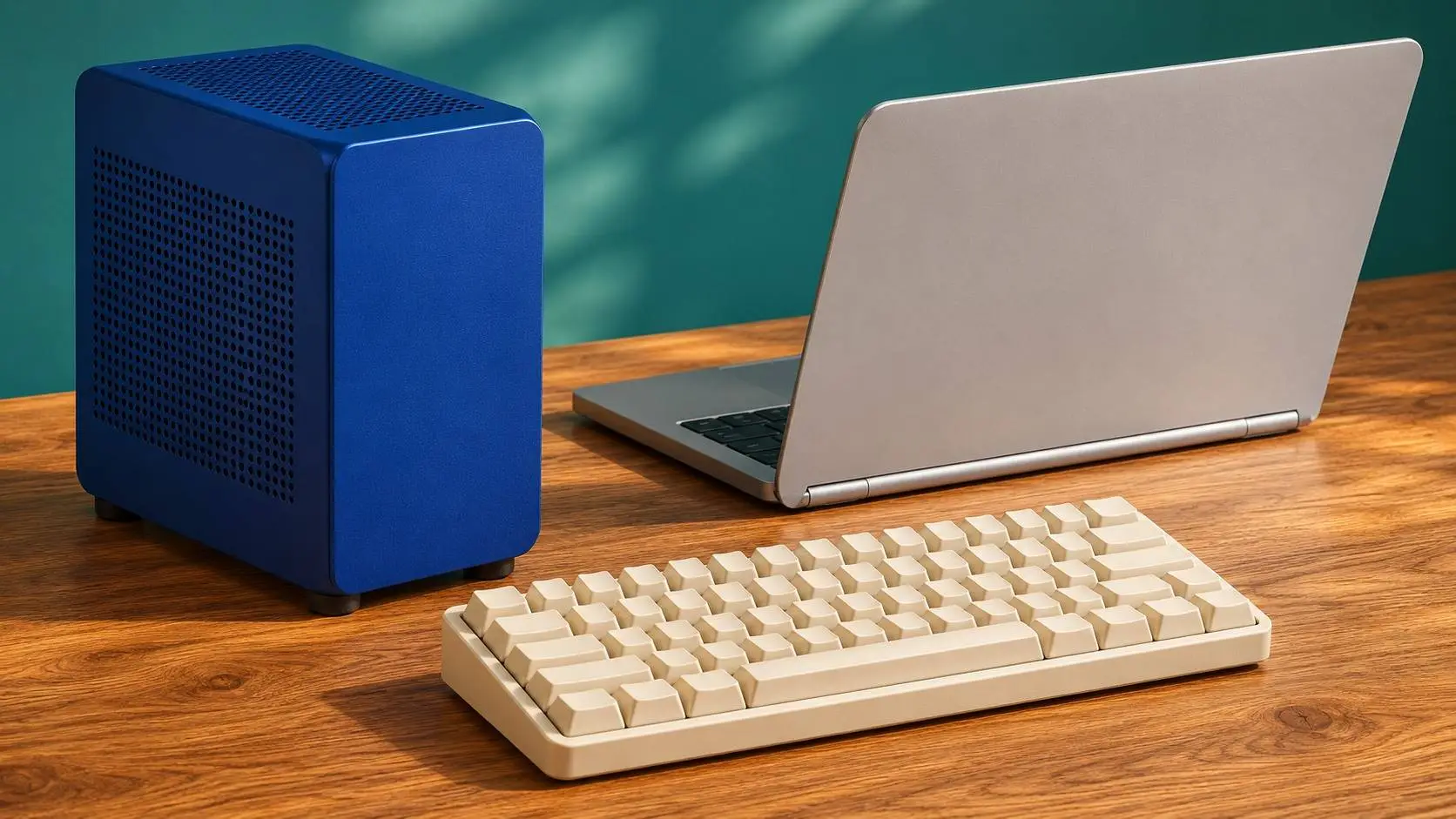
Ollama vs LM Studio comes down to what you want to do first. Choose LM Studio to browse models and ask a PDF questions in a desktop app. Choose Ollama to run a prompt from a script or to connect an app that already supports it. Both can serve a downloaded model to another program on the same computer.
Ollama vs LM Studio for beginners
- Get to your first chat. LM Studio lets you browse, load and try models in one window.
- Ask a PDF questions. Attach your file in LM Studio Chat, or drop it into Ollama’s desktop app on Windows or Mac.
- Repeat a text task from a script. Keep your model tag and the Ollama run command with the script.
- Connect an app that already runs locally. Choose a runner the app supports. Check the API features it needs.
Use our Ollama setup guide for the terminal route or our LM Studio tutorial for the desktop route. The vendors show how Ollama desktop and LM Studio handle files. If your own app must search a whole folder, see our Local RAG guide for the extra steps.
Ollama vs LM Studio for a local API
Ollama’s OpenAI-compatible base URL is http://localhost:11434/v1. In LM Studio, start the server in Developer or run lms server start. Its example base URL is http://localhost:1234/v1. Use the port your app shows. Check the model name and endpoints before you switch. The Ollama and LM Studio API docs list the features each one supports.
Ollama is a good fit for scripts that take a model tag and text input. LM Studio also has an lms command and a headless service, so you can start it without opening the app. Keep the server on your own computer for the first test. If an Ollama model runs on the CPU, follow our Ollama GPU troubleshooting guide to check where it loaded.
Ollama vs LM Studio for offline use
Get the model and runtime while online. Ollama’s local-only setting turns off cloud models and web search. LM Studio documents offline chat, document chat and a local server after setup. An app that connects to either runner can still send data to its own tools. Use our local AI privacy checklist to trace the full path.
Try the same small job in both tools
Start with the same supported GGUF file. That keeps the model and its compression level the same. Set both apps to 4,096 tokens if the model and hardware support it. Start a fresh chat in each one. Ask: The library closes at 5 p.m. on Friday and opens at 9 a.m. on Monday. Rewrite the notice in one sentence and keep both days and times.
Check both days and both times. If you time the runs, record which model file and context setting you used. Measure the first reply and a later reply on their own, since the first can include time to load the model. The two apps may use different prompt templates and engines even with the same file.
This guide uses vendor docs checked November 17, 2026. We did not measure speed, memory use or answer quality on the same PC. The Local AI guide can help you choose a model that fits.


Popular news

OpenAI Launches GPT-6.2 Astra and Sol for ChatGPT Work, Codex and the API

We asked four AIs to predict the GTA 6 story. They all think Lucia and Jason survive
Ollama Not Using Your GPU? A Step-by-Step Troubleshooting Guide

NotebookLM vs ChatGPT: Which Is Better for Document Research?
NotebookLM Not Working? Fix Source Import Errors