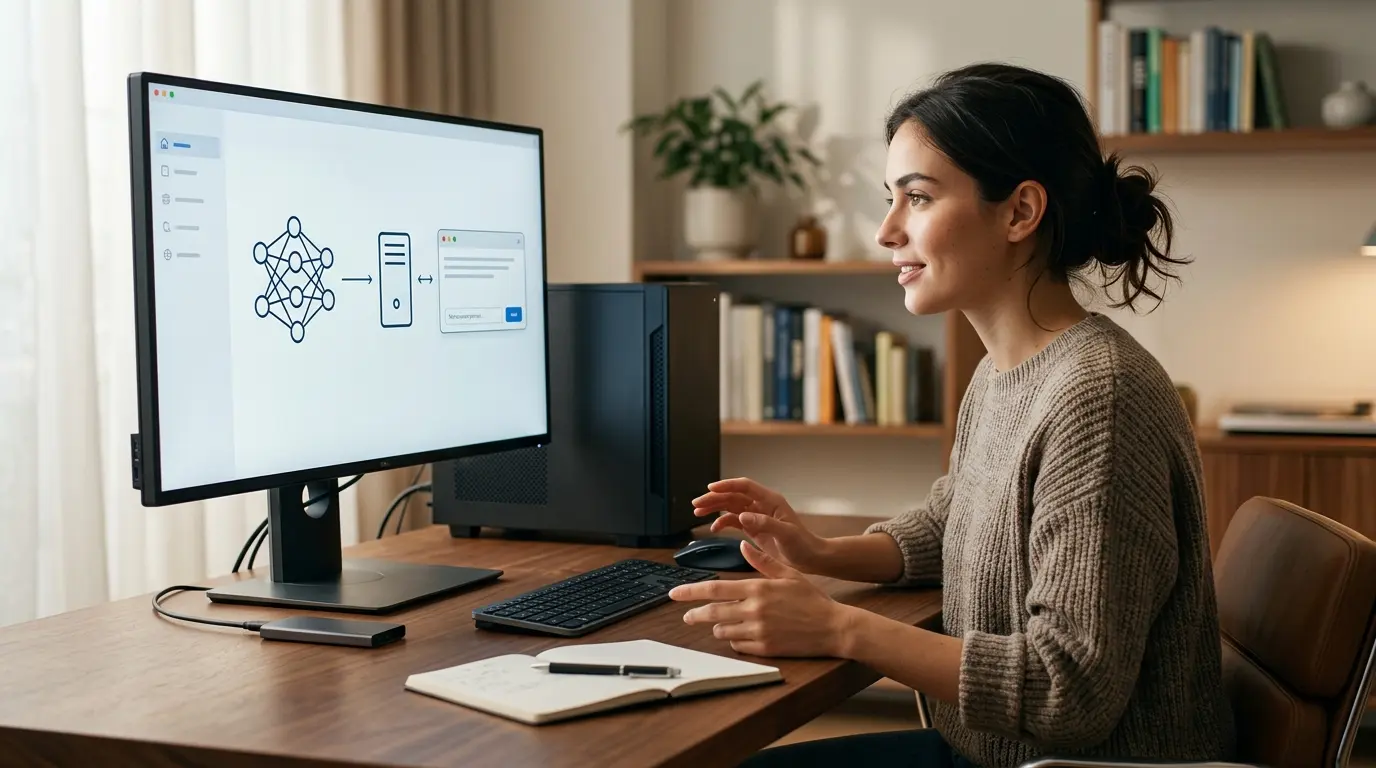
To run AI locally, you download a model and perform its calculations on your own computer. Your prompts can stay on that machine, the model can keep working without an internet connection after setup, and there is no per-message API bill.
The easiest beginner route is either Ollama, which offers a command-line tool and local API, or LM Studio, which provides a graphical interface. You do not need to train a model, build a server or buy a data-centre GPU to start.
For a fast first attempt:
- Install Ollama.
- Open Terminal, PowerShell or Command Prompt.
- Run ollama run qwen3.5:4b.
- Wait for the model download to finish.
- Type a question and press Enter.
That command downloads a roughly 3.4 GB model package from Ollama’s library and starts a local chat. A computer with 16 GB of system memory is a comfortable beginner target. An 8 GB machine can still run small models, but available memory, context length and speed will be limited.
This guide focuses on local large language models: AI systems that generate and analyse text, code and, in some cases, images. The wider Local AI hub also covers model selection, document search, privacy and local agents.
What do you need to run AI locally?
You need four things:
- A Windows, macOS or Linux computer.
- Enough RAM or GPU memory for the model you select.
- Free storage for the model files.
- A local runner such as Ollama, LM Studio or llama.cpp.
A dedicated GPU makes generation faster, but it is not mandatory. Ollama and llama.cpp can run models on the CPU and can split work between system RAM and a GPU. Apple Silicon uses unified memory shared by the CPU and GPU, so the comparison with a Windows PC’s separate RAM and VRAM is not one-to-one.
Use this as a conservative starting point:
| Computer | Sensible first model class | What to expect |
| 8 GB RAM | 1B–3B, 4-bit quantized | Basic rewriting and short chats; close other apps |
| 16 GB RAM | 3B–9B, 4-bit quantized | Good beginner range for chat, summaries and light code |
| 32 GB RAM | 12B–27B, 4-bit quantized | Stronger output, larger prompts and more headroom |
| 64 GB RAM | 30B–70B quantized | Workstation territory; a fast GPU matters more |
These are planning ranges, not guarantees. Architecture, quantization, context length, image input and the software runner all change actual memory use. Read our local AI hardware requirements guide before buying a new machine.
Which local AI program should you use?
| Tool | Best for | Interface | Local API |
| Ollama | Simple commands, development and integrations | Terminal plus desktop menu | Yes |
| LM Studio | Beginners who prefer buttons and a chat window | Graphical desktop app | Yes |
| llama.cpp | Advanced control, scripts and lightweight deployments | Command line and server | Yes |
Choose Ollama for the shortest repeatable setup
Ollama runs on Windows, macOS and Linux. It manages model downloads, selects available acceleration and exposes a local API. Its short model commands also make tutorials easy to reproduce.
The trade-off is that many workflows still involve a terminal. Our complete Ollama guide covers its app, CLI, API, context settings and security in detail.
Choose LM Studio for a graphical interface
LM Studio lets you search for compatible models, download one, load it into memory and chat in a desktop interface. Its official documentation recommends 16 GB or more of RAM, while noting that small models and modest context sizes may work on 8 GB Macs. On Windows it recommends at least 16 GB RAM and 4 GB dedicated VRAM.
AI World Today already has an LM Studio tutorial for readers who want the GUI route.
Choose llama.cpp when you want lower-level control
llama.cpp is the inference engine underneath many local AI applications. It supports CPU execution, Nvidia CUDA, Apple Metal, AMD HIP, Vulkan and hybrid CPU–GPU inference. It also supports many quantization levels and can launch an OpenAI-compatible server.
It is powerful, but Ollama or LM Studio removes more setup decisions for a first installation.
Step 1: Check your computer
Before downloading a model, record:
- Operating system and version.
- Installed system memory, or RAM.
- GPU model and dedicated VRAM, if present.
- Available disk space.
- Apple Silicon model and total unified memory on a Mac.
On Windows, open Task Manager → Performance. On macOS, choose Apple menu → About This Mac. On Linux, free -h shows system memory; nvidia-smi shows a supported Nvidia GPU and its VRAM.
Leave several gigabytes free beyond the model download. The model weights must coexist with the operating system, the runner, the context cache and temporary working memory. A 6 GB model file does not promise that 6 GB of RAM is enough.
Step 2: Install Ollama
Windows
Download the Windows installer from Ollama’s download page. The native application runs in the background and makes the ollama command available in PowerShell and Command Prompt. Ollama currently requires Windows 10 22H2 or newer.
After installation, open PowerShell and check:
ollama -v
macOS
Download Ollama, open the disk image and move the application into Applications. Current Ollama macOS requirements specify macOS Sonoma 14 or newer. Apple M-series Macs receive CPU and GPU acceleration through Metal; Intel Macs use CPU execution.
Open Terminal and check:
ollama -v
Linux
Ollama publishes this installation command in its Linux documentation:
curl -fsSL https://ollama.com/install.sh | sh
Piping a remote script into a shell grants that script permission to make changes. Security-conscious users can inspect the script first or follow Ollama’s manual installation instructions instead.
Start the server if your installation has not started it automatically:
ollama serve
Step 3: Pick a model that fits
Model names can be confusing because parameter count, download size and runtime memory are different measurements.
- Parameters describe learned numerical values in the model.
- Download size is the size of a particular packaged and often quantized model.
- RAM or VRAM use includes loaded weights plus context and working memory.
- Active parameters in a mixture-of-experts model describe the subset used for each token. The other expert weights still have to be stored and usually loaded.
Here are practical examples from Ollama’s model library as of 21 August 2026:
| Command | Listed model package | Good first use |
| ollama run llama3.2:1b | 1.3 GB | Very constrained hardware and basic text tasks |
| ollama run qwen3.5:4b | 3.4 GB | General chat and multimodal experimentation |
| ollama run deepseek-r1:8b | 5.2 GB | Reasoning experiments |
| ollama run ministral-3:8b | 6.0 GB | Multilingual chat, images and tool-capable workflows |
| ollama run gemma4:12b | 7.6 GB | Stronger multimodal work on a roomier machine |
| ollama run gpt-oss:20b | 14 GB | Local reasoning with at least 16 GB memory and little spare headroom |
The packages above are model files listed by Ollama, not total system requirements. Start smaller than your theoretical limit. If the result is useful and the machine remains responsive, move up one tier. The best local AI models guide compares quality, licenses and use cases rather than assuming the largest model is always best.
Readers interested in particular families can also compare Llama, DeepSeek models and the Mistral model guide.
Step 4: Start your first local conversation
For a balanced small model:
ollama run qwen3.5:4b
The first run downloads the selected package. Later runs reuse the local copy.
Try a prompt that makes the result easy to judge:
Explain the difference between RAM and storage in five bullet points for a beginner. End with one practical example.
Then test a task you genuinely need:
Rewrite the following paragraph in plain English. Preserve every factual claim and flag anything ambiguous:
[paste non-sensitive text here]
Exit the interactive chat with:
/bye
Useful management commands include:
ollama ls
ollama ps
ollama pull qwen3.5:4b
ollama stop qwen3.5:4b
ollama rm qwen3.5:4b
ollama ls shows downloaded models. ollama ps shows loaded models, the CPU/GPU split and allocated context. pull updates or downloads a model; rm deletes its local files.
Step 5: Check whether the GPU is being used
Run:
ollama ps
Ollama labels the processor split. 100% GPU means the loaded model is entirely on the GPU, 100% CPU means it is in system memory, and a split value means Ollama has offloaded part to each.
CPU inference can work, especially for small models, but generation will usually be slower. A model that spills from VRAM into system RAM may still run; latency can increase sharply because data moves across a slower connection.
For the hardware concepts behind this, read what GPUs are and why AI uses them and our comparison of Nvidia and AMD for AI.
Step 6: Set a realistic context length
Context is the amount of text and other tokens available to the model during a request. More context consumes more memory.
Ollama’s current defaults depend on available VRAM:
- Below 24 GiB VRAM: 4,096 tokens.
- 24–48 GiB VRAM: 32,768 tokens.
- 48 GiB or more: 262,144 tokens.
The model may advertise a 128K or 256K maximum while Ollama allocates far less on your machine. That is expected. A model’s architectural maximum and your configured runtime context are separate values.
Do not raise context to the maximum by reflex. A short chat or rewrite may need only a few thousand tokens. Long documents, repositories and local RAG need more careful sizing.
Is local AI actually private?
Local inference can keep prompts and responses on your device. Ollama states that it does not see prompts or data when models run locally. LM Studio states that downloaded models, document chat and its local server can operate offline.
That privacy benefit has conditions:
- You must select a downloaded local model, not a model marked cloud.
- Web search, remote tools and external APIs can transmit data.
- Other software on the computer may read local files or logs.
- Malware, browser extensions and exposed network services remain risks.
- A model license may restrict use even when inference is local.
Ollama can disable its cloud features after setup. Add this to ~/.ollama/server.json:
{
"disable_ollama_cloud": true
}
Or set:
OLLAMA_NO_CLOUD=1
Restart Ollama after the change. Our full guide to whether local AI is private and safe covers device security, model provenance, logs and network exposure. The local AI versus cloud AI comparison helps decide which data belongs where.
Important: the local Ollama API has no authentication
Ollama automatically serves an API at http://localhost:11434. According to its authentication documentation, no authentication is required for local access.
By default, Ollama binds to 127.0.0.1, so other computers cannot normally connect. Do not change OLLAMA_HOST to 0.0.0.0:11434, forward port 11434 or publish it through a tunnel without adding a properly configured authenticated reverse proxy, firewall rules and encryption. Otherwise, another party may be able to send prompts, consume resources or interact with available models and tools.
This matters even more when the model becomes an agent. A chatbot returns text; an agent may receive permission to call tools, read files or execute actions. Start with the local AI agents guide, understand AI agent architecture, and apply the controls in our AI agent security guide before granting tool access.
Common local AI problems
The model is painfully slow
Choose a smaller quantized model, reduce context length and close memory-heavy applications. Use ollama ps to see whether the model has fallen back to the CPU. Update GPU drivers and Ollama before changing advanced settings.
The computer freezes or starts swapping
The loaded model and context exceed comfortable memory. Restart with a smaller model. A machine technically capable of allocating the weights may have too little memory left for the operating system.
The answer quality is weak
Try a clearer prompt, then a larger or more suitable model. A compact model can handle classification or rewriting well while struggling with long reasoning and obscure facts. Local models still hallucinate; verify important claims.
The advertised context does not appear in ollama ps
Ollama sets a runtime context based on VRAM. The advertised number is the model’s maximum, not a promise that your runner will allocate it automatically.
Ollama cannot find the GPU
Confirm that the card appears in the official Ollama hardware support list, install the required driver and restart. Nvidia, AMD, Apple Metal and Vulkan support have different requirements.
Can local AI replace ChatGPT?
It can replace part of the workflow: private drafting, document classification, summaries, offline assistance and experiments without per-request fees. Cloud systems still tend to offer larger frontier models, managed search, polished voice or image features, account sync and infrastructure that scales instantly.
The practical question is workload-specific. Our guide to whether ChatGPT can run locally separates the ChatGPT service from downloadable open-weight models. Many users will choose a hybrid: local AI for sensitive or repetitive work, cloud AI for tasks that require the strongest hosted model or live services.
Beginner checklist
- Install Ollama or LM Studio from the official site.
- Start with a 1B–9B quantized model rather than the largest available option.
- Leave memory and storage headroom.
- Test with a real but non-sensitive task first.
- Use ollama ps to check processor split and context.
- Keep the local API on loopback unless you can secure a network service properly.
- Remember that local inference does not make model output accurate.
- Review licenses before commercial deployment.
- Treat tool-enabled models as software with permissions, not as ordinary chat windows.
With those boundaries in place, running AI locally is a manageable software installation rather than a research project. Start small, measure what the machine actually loads, and expand only when the workload demands it.

byDavid Porter
Latest comments
Loading