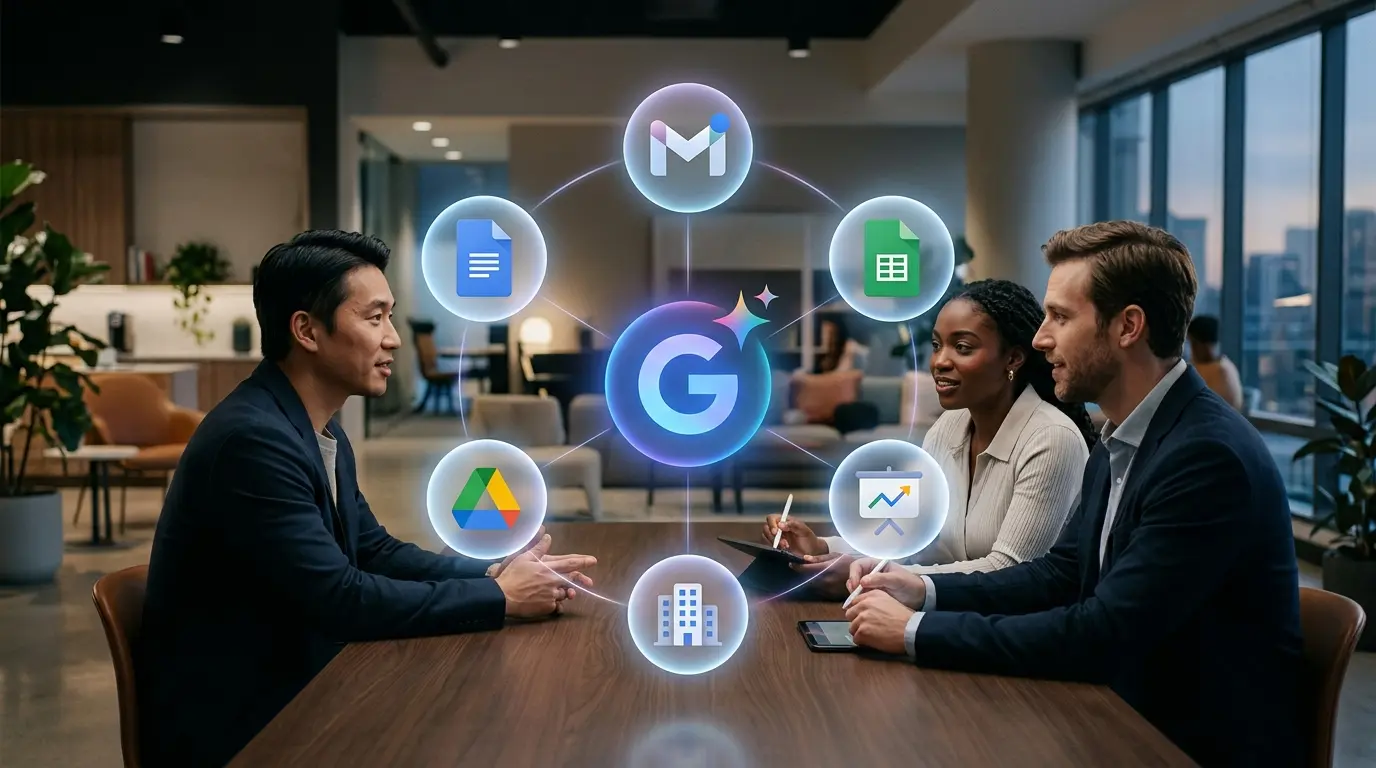
Gemini for Google Workspace is Google’s collection of AI capabilities inside its business productivity environment. It can help users draft and summarize email, work with documents, interpret spreadsheets, create presentations, search files, take meeting notes, produce videos and automate cross-Workspace processes.
Its real advantage is not a generic chat window. It is proximity to company work.
When the organization already uses Gmail, Drive, Docs, Sheets, Slides and Meet, Gemini can assist without forcing employees to download files, paste content into a personal chatbot or rebuild the output in another application.
That convenience only becomes an organizational benefit when licensing, permissions, privacy and rollout are handled correctly. This guide owns the Workspace search intent. For the wider assistant and model family, start with the Google Gemini cornerstone.
What is Gemini for Google Workspace?
Gemini for Google Workspace is the AI layer integrated into eligible Workspace applications and accounts. It includes:
- Gemini assistance inside individual Workspace apps;
- access to the Gemini app under organizational terms;
- Gemini Notebook for source-grounded work;
- Workspace Studio for no-code automation;
- administrative and security controls;
- edition-specific limits and advanced features.
Google began including many Gemini capabilities in Business and Enterprise Workspace editions in 2025 instead of selling the former Gemini add-ons separately. The exact feature level still varies by edition, account, language and rollout.
Do not confuse it with:
- a personal Google AI Plus, Pro or Ultra subscription;
- the separate Gemini Enterprise employee app;
- the Gemini Developer API;
- Gemini Enterprise Agent Platform on Google Cloud.
All use related technology, but they solve different purchasing and governance problems.
What can Gemini do in each Workspace app?
Gmail
Gemini can:
- summarize long threads;
- identify questions and decisions;
- draft replies;
- change tone or length;
- retrieve relevant information from permitted sources;
- help find messages;
- turn an email into an action or follow-up.
The most useful workflow is not “write an email.” It is “draft a reply that answers every open question using the approved facts and shows me anything it could not determine.”
Check recipients, attachments, dates and commitments before sending. An accurate draft to the wrong person is still a serious failure.
Google Docs
Gemini can help:
- start a document;
- summarize or restructure text;
- revise clarity and tone;
- generate tables or outlines;
- surface information from other permitted Workspace sources;
- create visuals in eligible editions;
- turn notes into a more formal artifact.
Use it as an editor and collaborator, not an invisible author. Preserve version history, identify AI-added claims and assign a human owner for the final document.
Google Sheets
Gemini in Sheets can:
- help build formulas;
- organize and clean data;
- answer questions about a table;
- identify patterns;
- create visualizations;
- categorize text responses;
- support repetitive analysis.
Spreadsheet work is especially vulnerable to confident errors. Confirm ranges, filters, units, currencies, dates, joins and treatment of blank cells. Reproduce important calculations independently.
Google Slides
Gemini can support:
- presentation outlines;
- slide drafts;
- infographics;
- images;
- summaries of source material;
- speaker notes;
- adaptation for a particular audience.
Ask for one message per slide and a source location for each factual claim. AI-generated decks often look complete before the argument is coherent.
Google Drive
Gemini can help find, summarize and analyze files the user is permitted to access. This can reduce time spent opening multiple documents or reconstructing project history.
The access model remains important. Gemini should respect existing Workspace permissions, but poor folder hygiene and over-broad sharing can still expose information to the wrong employee before AI enters the picture.
Google Meet
Gemini can:
- take meeting notes;
- summarize discussion;
- identify action items;
- support translation and other eligible meeting features;
- help participants catch up.
Meeting AI changes expectations around notice, consent, retention and the official record. An automated summary can omit dissent, uncertainty or the exact wording of a decision. Define whether the notes are a convenience or a formal record.
Google Chat
Gemini can summarize and translate conversations, help users catch up and surface relevant information. It is useful in busy spaces where important decisions are mixed with routine discussion.
Do not treat a generated summary as a replacement for reading a sensitive incident, employee matter or disputed decision.
Google Vids
Vids provides collaborative video creation inside Workspace. Gemini can help generate scripts, storyboards, visuals, narration and draft video content, with edition-specific access to Google’s media models.
Review rights, likeness, branding and factual claims before sharing externally.
Gemini Notebook
Gemini Notebook is the source-grounded research and writing environment formerly known as NotebookLM. Workspace versions can add larger limits, sharing, analytics and organizational protections.
It is well suited to:
- internal policy collections;
- project research;
- training material;
- briefing packs;
- source comparison;
- team knowledge sharing.
For a full walkthrough, use our Gemini Notebook tutorial. Teams looking for operational examples can continue with 15 Gemini Notebook business workflows. This Workspace guide will not recreate their step-by-step material.
Workspace Studio
Workspace Studio lets users automate tasks across Workspace through natural-language instructions, templates and custom flows. It can turn a repeated process into an automation without requiring traditional programming.
Good candidates have:
- a stable trigger;
- defined source systems;
- predictable steps;
- a checkable output;
- low consequence or a human approval gate.
Bad candidates depend on undocumented judgment, sensitive exceptions or irreversible external actions.
Workspace editions and Gemini access
Google’s Workspace pricing matrix changes by country and contract, and Gemini features vary by edition.
The broad pattern is:
- Business Starter: basic Gemini access and selected functions such as Gmail assistance;
- Business Standard and Plus: Gemini across more Workspace applications, stronger Notebook and collaboration capabilities;
- Enterprise Standard and Plus: broader enterprise controls, scale and advanced features;
- AI Expanded Access: added capacity for the most active AI users;
- Education offerings: separate licensing and safeguards.
Gemini app limits and Gemini-in-Workspace-app limits can be separate. An edition providing the assistant does not imply unlimited use of every advanced feature.
Use the current Google Workspace pricing table and edition comparison for procurement. Static price lists can become inaccurate as Google changes inclusions.
Personal Google AI plan versus Workspace account
| Personal Google AI plan | Google Workspace |
| Purchased by an individual | Purchased and administered by an organization |
| User controls the personal account | Admin controls identity and many services |
| Consumer Gemini data terms apply | Workspace agreement and data-processing terms apply for protected core services |
| Bundles personal storage and benefits | Bundles productivity, collaboration, security and AI |
| Poor substitute for company governance | Designed for organizational deployment |
An employee may see Gemini in both accounts on the same device. They should confirm which profile is active before attaching a file or connecting an app.
How does Google handle Workspace data?
Google says that when eligible business, education and public-sector customers use the Gemini app with enterprise-grade data protections:
- prompts and files are governed by the Workspace agreement;
- chats and uploaded files are not reviewed by human reviewers without permission;
- they are not used to train generative AI models without permission;
- Workspace security and privacy standards apply.
This differs from the default consumer-account model.
The boundary is not universal. Third-party apps connected to Gemini can follow different terms. A feature may be an additional service rather than a protected core service. An employee can also switch into a personal account.
Users should look for the protection indicator in the Gemini experience and follow company policy. Administrators should verify service status and terms rather than rely on an employee screenshot.
Administrator controls
Workspace administrators can control or influence:
- access to the Gemini app;
- access by organizational unit or group;
- Workspace smart features;
- Gemini Notebook;
- Vids;
- AI meeting notes;
- AppSheet AI;
- Workspace Studio;
- third-party and API access;
- mobile applications through device management;
- Chrome AI features;
- audit logs and investigation.
Turning off the Gemini app does not necessarily disable every AI feature inside Workspace applications. Controls exist at several layers.
This is why an organization needs an AI service inventory rather than one “Gemini on/off” assumption.
A practical rollout plan
1. Define allowed use cases
Begin with specific jobs:
- draft internal emails;
- summarize public material;
- create meeting action lists;
- analyze non-sensitive survey responses;
- build first-pass presentations;
- question an approved policy notebook.
Avoid launching with “use Gemini for anything.”
2. Classify data
Define what employees may enter:
- public;
- internal;
- confidential;
- restricted;
- regulated;
- privileged.
Map each class to the permitted Gemini service and account.
3. Select the edition and access group
Do not license every employee at the highest level before measuring use. Pilot with roles that have clear workflows and an accountable manager.
4. Configure controls
Review Gemini app access, connected services, third-party apps, Notebook sharing, Vids, Meet notes, Workspace Studio and audit settings.
5. Train on verification
Employees should know how to:
- inspect a source;
- check a formula;
- distinguish a draft from an approved record;
- report a harmful output;
- avoid secrets;
- recognize prompt injection and suspicious documents.
6. Measure complete-task value
Track:
- time to a usable result;
- correction time;
- adoption by workflow;
- error rate;
- sensitive-data incidents;
- duplicated or abandoned outputs;
- license utilization;
- employee satisfaction.
“Prompts sent” is not a business outcome.
7. Expand selectively
Add capacity or features where the pilot demonstrates value. Retire workflows that create more review work than they save.
Ten high-value Workspace workflows
Inbox catch-up
Ask Gemini to identify messages requiring a decision or response, then verify sender and deadline.
Thread-to-brief
Turn a long email discussion into decisions, unresolved points and owners.
Document first draft
Build a structured draft from approved notes while labeling unsupported gaps.
Policy comparison
Compare two versions in a table with section references and required approvals.
Sheet quality audit
Identify blanks, inconsistent labels, duplicates and formula risks before analysis.
Meeting follow-up
Convert Meet notes into proposed actions, but have the meeting owner approve the record.
Drive project catch-up
Summarize recent approved files and identify what changed, respecting existing access.
Presentation development
Create the narrative and source map before generating slide visuals.
Source-grounded onboarding
Build a shared Gemini Notebook from current internal material and assign an owner for source freshness.
Repetitive process automation
Use Workspace Studio for a stable flow with a human approval before external communication or deletion.
Security and governance risks
Overshared Drive content
Gemini can make existing information easier to discover. Repair permissions and shared-drive structure before celebrating enterprise search.
Prompt injection
Documents, email and webpages can contain instructions intended to manipulate an AI agent. Treat retrieved content as data, not trusted commands.
Unapproved third-party apps
A connected app can create a new contractual and security boundary. Review it separately from Google Workspace.
Accidental personal-account use
Account switching is a practical data-loss risk. Train employees to identify the active profile.
Automation without approval
Flows that send, change or delete should use checkpoints proportional to consequence.
AI-generated official records
Meeting notes, policies and client communications require an owner and an approval state.
Gemini for Workspace versus Microsoft 365 Copilot
The strongest factor is usually the existing suite.
Gemini is the natural choice when work lives in Google Workspace. Microsoft 365 Copilot is the natural comparison for organizations centered on Outlook, Word, Excel, PowerPoint, Teams and OneDrive.
Migration cost, identity, permissions, file formats and employee habits can outweigh a narrow model benchmark. A company should not change its entire productivity platform solely because one assistant leads a temporary evaluation.
Gemini for Workspace versus ChatGPT Business
Gemini embeds AI in Google’s suite. ChatGPT Business provides a dedicated OpenAI workspace with its own projects, models, apps and work surfaces.
Some organizations may use both:
- Gemini for native Workspace tasks;
- ChatGPT for cross-source or OpenAI-specific workflows.
That choice adds cost and governance complexity. Define which data and jobs belong in each system.
Our Gemini vs ChatGPT comparison covers the product decision, while the ChatGPT for work guide shows OpenAI-centered workflows.
Frequently asked questions
Is Gemini included in Google Workspace?
Many Gemini features are included in current Business and Enterprise editions, but capability and limits vary. Check the exact edition and contract.
Does Gemini train on Workspace data?
Google says protected Workspace chats and uploaded files are not used to train generative AI models without permission and are not reviewed by humans without permission. Third-party apps and unprotected services can follow different terms.
Can an administrator turn Gemini off?
Admins can control the Gemini app and several individual AI services. Turning off one surface does not necessarily disable Gemini features everywhere.
Can Gemini summarize Gmail?
Yes, in eligible accounts and editions. Users should verify the scope, sender, dates and requested action.
Can Gemini create formulas in Sheets?
It can help create and explain formulas and analyze data. Important calculations should be reproduced and checked in the workbook.
Does Gemini take meeting notes?
Eligible Meet features can create notes and summaries. Organizations should establish notice, retention and approval rules.
What is AI Expanded Access?
It is an add-on for higher access to advanced Gemini capabilities for users who need more capacity than their base Workspace edition provides.
Is Google AI Pro enough for a business?
It is a personal plan, not a replacement for managed organizational licensing, data protection, access control and offboarding.
What is Workspace Studio?
Workspace Studio is a no-code environment for automating tasks across Workspace with Gemini.
How should a company begin?
Pilot two or three low-risk, measurable workflows with a defined user group, data policy, training and success criteria.
Bottom line
Gemini for Google Workspace is most valuable when it removes the gap between AI assistance and the application where work already happens.
Its success depends less on giving every employee a chat box and more on choosing useful workflows, cleaning up permissions, applying the right data terms and keeping humans accountable for final outputs.
Return to the complete Gemini guide, explore Gemini Enterprise, or use our practical Gemini tutorial.

Popular news

Gemini 4 Carbon leads today's AI news as ChatGPT adds API credits

Apple Creator Studio Update Adds MotionVFX and Artificial Intelligence Features

Dartmouth Provost Resigns Over Undisclosed Artificial Intelligence Use

Samsung Electronics Posts Record Profit Driven by AI Chip Demand

GitHub Copilot Fusion Cuts Coding Costs Through Intelligent Model Orchestration

Google Gemini 4 Carbon Secures Top Benchmark Rankings With Limited Cybersecurity Access
Latest comments
Loading