Your iPhone can record calls, but it can't transcribe Dutch yet
ExplainersMonday, 17 August 2026 at 20:48
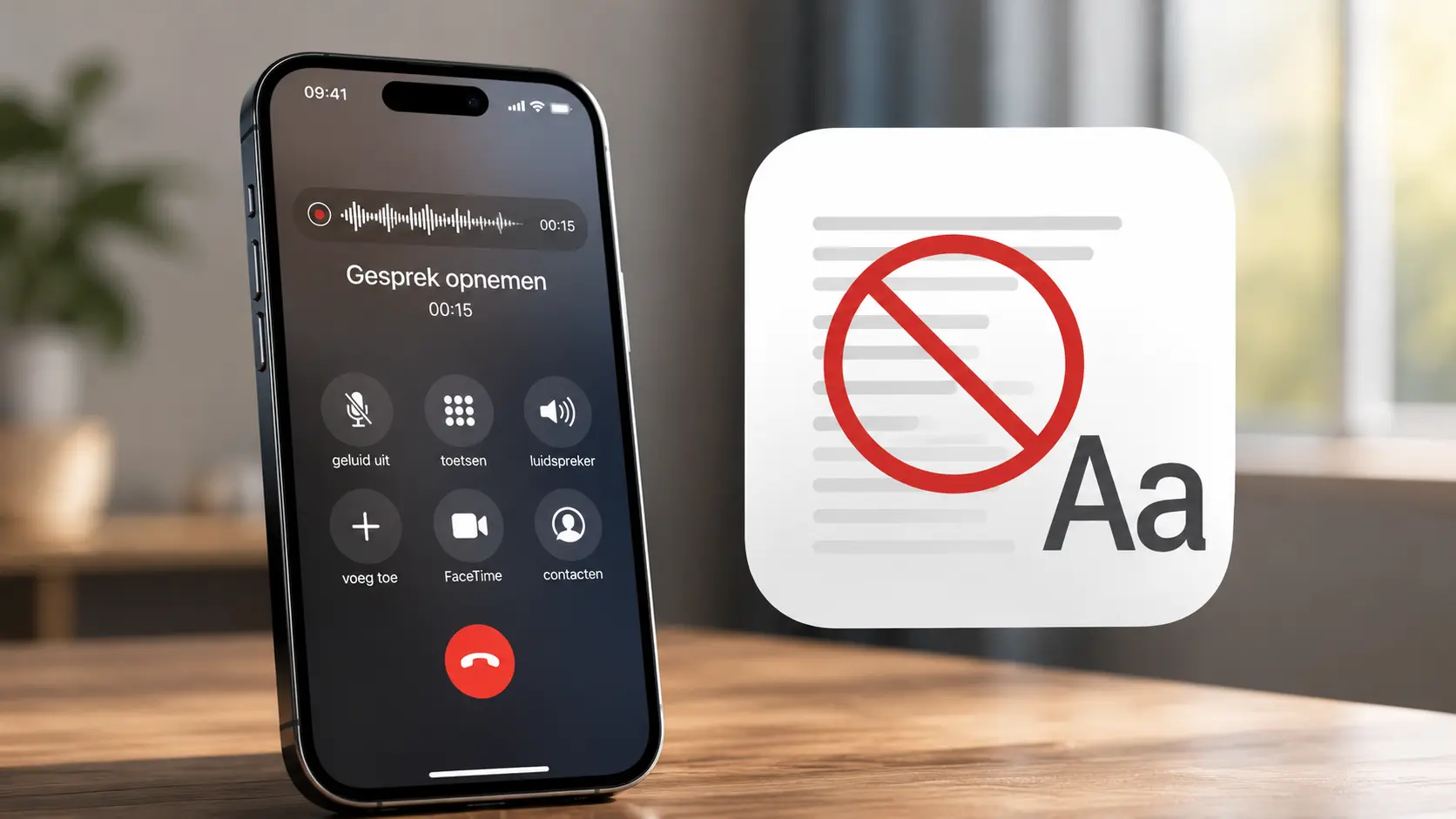
No more juggling separate apps, a second phone, or speaker mode. The iPhone now has a built-in call recording feature that automatically notifies both parties and saves the recording to the Notes app.
Apple officially lists Dutch as a supported language for call recording. As of August 12, 2026, there’s a major caveat: Apple does not yet support Dutch transcription of phone calls. An AI summary of a Dutch-language call also isn’t officially available.
In short: you get a solid, usable audio recording—but not the automatic written transcript that users of some other supported languages see on eligible devices.
How to record a phone call on your iPhone
Apple introduced the built-in feature starting with iOS 18.1. If you’re on a recent iOS version and a supported iPhone, record a call like this:
- Start or answer a call in the Phone app.
- Tap More during the call.
- Choose Call Recording.
- Wait for the automatic announcement to play.
- Have your conversation.
- Tap Stop to end the recording, or hang up.
As soon as recording starts, all participants hear an automatic audio notice. You cannot secretly start a recording with this built-in feature.
If you don’t see the recording button, first check that iOS is fully up to date. Apple also warns that call recording may not be available on every device or in every region. You can fully disable the feature under Settings > Apps > Phone > Call Recording.
Where to find your recorded call
The iPhone automatically stores the recording in the Notes app, inside the Call Recordings folder. From that note you can:
- listen back to the recording;
- skip forward and backward;
- share the audio file;
- save a copy to Files;
- delete the recording.
That’s more practical than a long list of loose audio files, because each recording is tied to its own note. You can add details like the contact’s name, the topic, and agreed next steps.
Always check the full recording before relying on it. A dead battery, dropped connection, or storage issue can still ruin things—even with a built-in feature.
Recording in Dutch isn’t the same as transcribing Dutch
This is where confusion creeps in. On Apple’s current feature availability page, there are three separate items:
- Phone: Call Recording;
- Phone: Call Transcription;
- Apple Intelligence: Phone: Call Transcription Summaries.
Dutch appears under call recording. Dutch is missing under transcription. Dutch is also absent from the separate list of AI summaries for phone transcriptions.
Concretely, that means:
- You can officially record a Dutch-language phone call.
- The audio is saved in Notes.
- You don’t officially get a Dutch written transcript.
- Apple Intelligence cannot yet produce a supported transcription summary for that Dutch call.
The fact that Apple Intelligence now supports Dutch in other features doesn’t change this specific limitation. Availability lists are per feature. Setting your iPhone to English won’t suddenly make Dutch speech a supported transcription language.
Do you need Apple Intelligence to record?
No. The core call recording feature and any AI processing are separate.
You don’t need Apple Intelligence to make or play back a recording. For an automatic summary, you do need a compatible device, Apple Intelligence enabled, and a language Apple supports for call summaries.
An older iPhone may show the recording feature while more advanced AI features are missing
Always ask for explicit consent
The automatic announcement is a helpful heads-up, but don’t treat it as a substitute for a clear agreement.
Apple itself advises confirming that the other participant is willing to be recorded and gives explicit permission. So before you start, say something like:
I’d like to record this call so I can accurately review our agreements later. Is that okay with you?
If needed, also explain:
- why you’re recording;
- who can listen to the recording;
- how long you’ll keep it;
- whether you’ll share the file with anyone else;
- how the recording can be deleted.
For calls with customers, patients, employees, or other sensitive relationships, extra privacy, labor, or professional rules may apply. Never auto-share a recording with an AI service or colleague just because it’s technically possible.
How to get usable notes from a Dutch recording
Without automatic transcription, the recording mainly serves as a reference. A practical workflow:
- During the call, jot down only key points and decisions.
- Right after, replay the relevant parts.
- Manually note actions, names, amounts, and deadlines.
- For major agreements, send a written confirmation.
- Delete the recording once you no longer need it.
If you plan to transcribe the audio later via another service, first check where the file is processed and whether your consent covers that use. Recording a call does not equal permission to upload it to an external AI service.
FAQs
Can every iPhone record phone calls?
The feature is available from iOS 18.1, but exact availability depends on the device, iOS version, and region. Update iOS and check if Call Recording appears during a call.
Will the other person hear that I’m recording?
Yes. With Apple’s built‑in recording, all participants automatically hear when recording starts.
Can my iPhone transcribe a Dutch call?
Not officially. As of August 12, 2026, Dutch is supported for call recording, but not listed among Apple’s supported languages for phone call transcription.
Can Apple Intelligence summarize the call?
Only if transcription and summarization are supported for the spoken language and your device meets Apple Intelligence requirements. For Dutch phone calls, that support is not officially available as of August 12, 2026.

Popular news




Latest comments
Loading