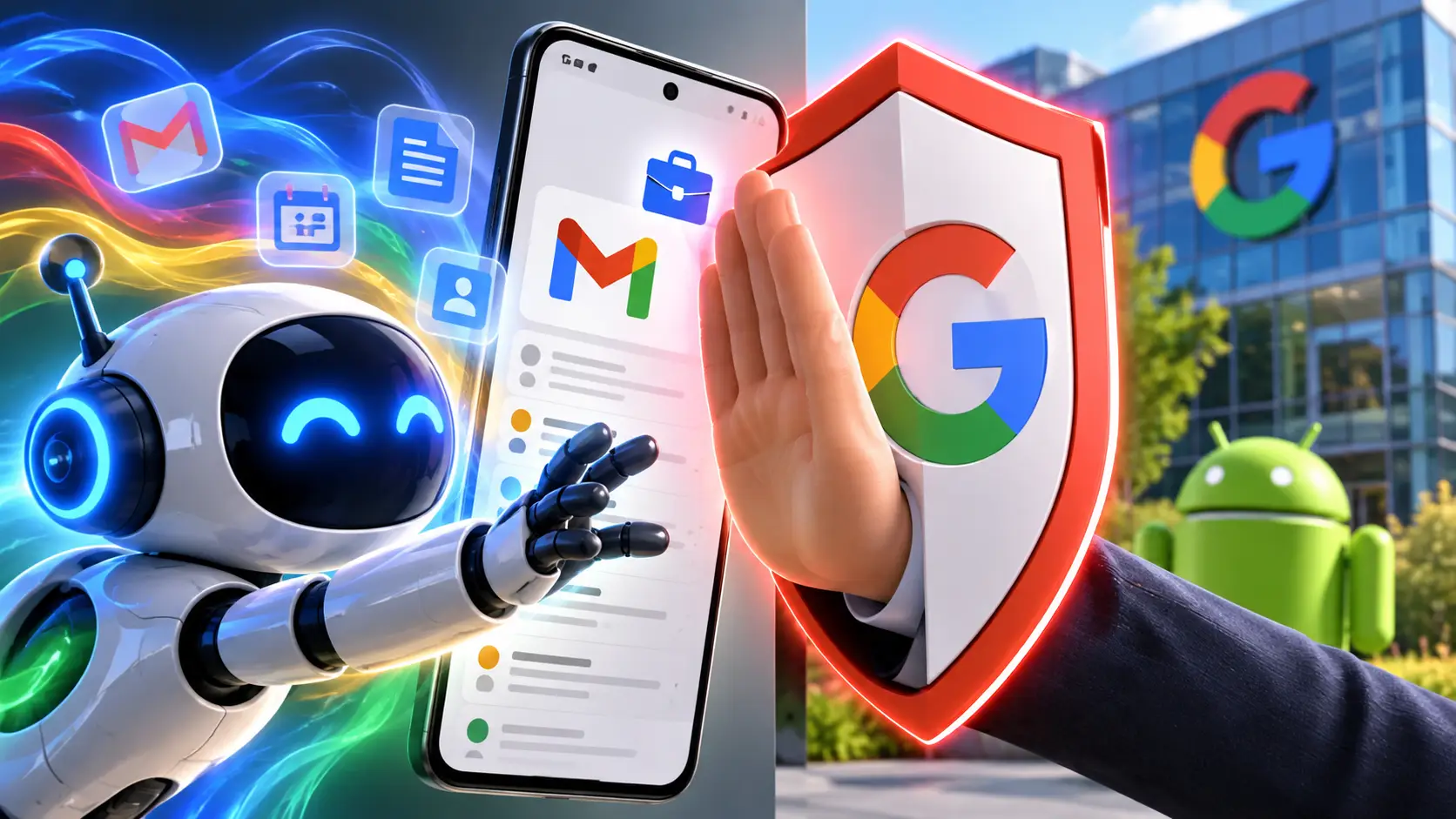
One phone, two worlds: your personal email and photos sit next to work messages, documents, and calendars. Now that Google is bringing more AI agents to Android Enterprise, a simple question is urgent: what is that assistant actually allowed to see? Google says a personal agent cannot access apps or data inside a managed work profile. At the same time, some work and personal apps can be linked. Here’s how to check the line on your own device.
What Google announced on September 23
According to Google’s Android Enterprise announcement, Gemini can now handle more complex, cross‑app tasks using what’s on your screen at that moment. Google lists Calendar, Gmail, and the browser as possible sources to pull info and take action. That’s a step beyond asking a single question in a chat window: an agent tries to orchestrate work across apps.
For businesses, Google flags two guardrails. Personal AI agents, the company says, can’t freely access corporate apps or data inside the work profile. Admins can also configure, restrict, or disable AI automation for their organization. These are Google’s statements about Android Enterprise’s design—not independent proof that every AI app always keeps data perfectly separated.
Google doesn’t specify which users in the Netherlands can use the new agent features today. There’s no list of supported phones or rollout dates per feature either. So don’t assume this lands on every Android phone right now. What’s possible on your work device still depends on the phone, Android version, your organization, and its settings.
What exactly is a work profile?
An Android work profile is a separate, organization‑managed space on your phone. Work apps are marked with a briefcase icon. You can have two versions of the same app: one personal, one for work. That separation isn’t new; what’s new in Google’s announcement is its explicit commitment to uphold that boundary for personal AI agents too.
If Gmail exists only as a personal app on your phone and your employer uses a separate mail app in the work profile, it’s wrong to infer from Google’s AI plans that a personal assistant can suddenly search all your work email. Conversely, a work profile doesn’t mean every question you ask an AI tool automatically stays outside your company: if you use a managed account or an app inside the work profile, your employer’s settings and policies apply.
In its work phone management guide, Google explains that an employer can view and manage apps and data inside the work profile. Apps, data, and usage in the personal profile are not visible to the organization. That holds even on a company‑owned device, though an employer may manage broader device settings. The corporate admin can, for example, install or remove apps in the work profile, restrict sharing between profiles, and control access to corporate data.
The key nuance: linked apps
The two profiles aren’t a perfect wall in every situation. A calendar app, for instance, may be installed in both profiles. If your organization allows it, you can link certain apps to view personal and work events together. Google warns in its guidance on linked apps that such connections can share personal data with work apps or your employer. Some apps, like Google Search, may even be linked by default, according to the same help page.
That’s not proof Gemini can now crawl your entire phone via such links. The documentation is more specific: data can flow between profiles through allowed app connections. To know what an AI agent can use, check both the work profile and each app’s permissions and links. A profile boundary does not replace reviewing the services you personally grant access to.
How to audit your Android phone
- Find the work profile. Open Settings > Passwords & accounts and look for a Work tab. Exact menu names can vary by phone. You can also spot work apps by the briefcase icon.
- Review connections. On Android 11 or later, go to Settings > Apps > Special app access > Connected work & personal apps. Check which apps can exchange data and read the permissions screen before approving a new link.
- Remove unwanted links. In that list, tap the app and turn off Link these apps. Some connections depend on your organization’s policy; when in doubt, ask IT what’s allowed.
If you don’t use a work profile, there’s no automatic split between personal and work files used in the same apps or accounts. An employer that manages a business account can set different rules for that account. Practical takeaway: always check which profile and which account are active before handing work documents to an assistant. Previously, we explained how Gemini Intelligence aims to operate apps on your behalf and what linking Gmail to Gemini means. The Android Enterprise update adds a clear boundary for managed work profiles.

Latest comments
Loading