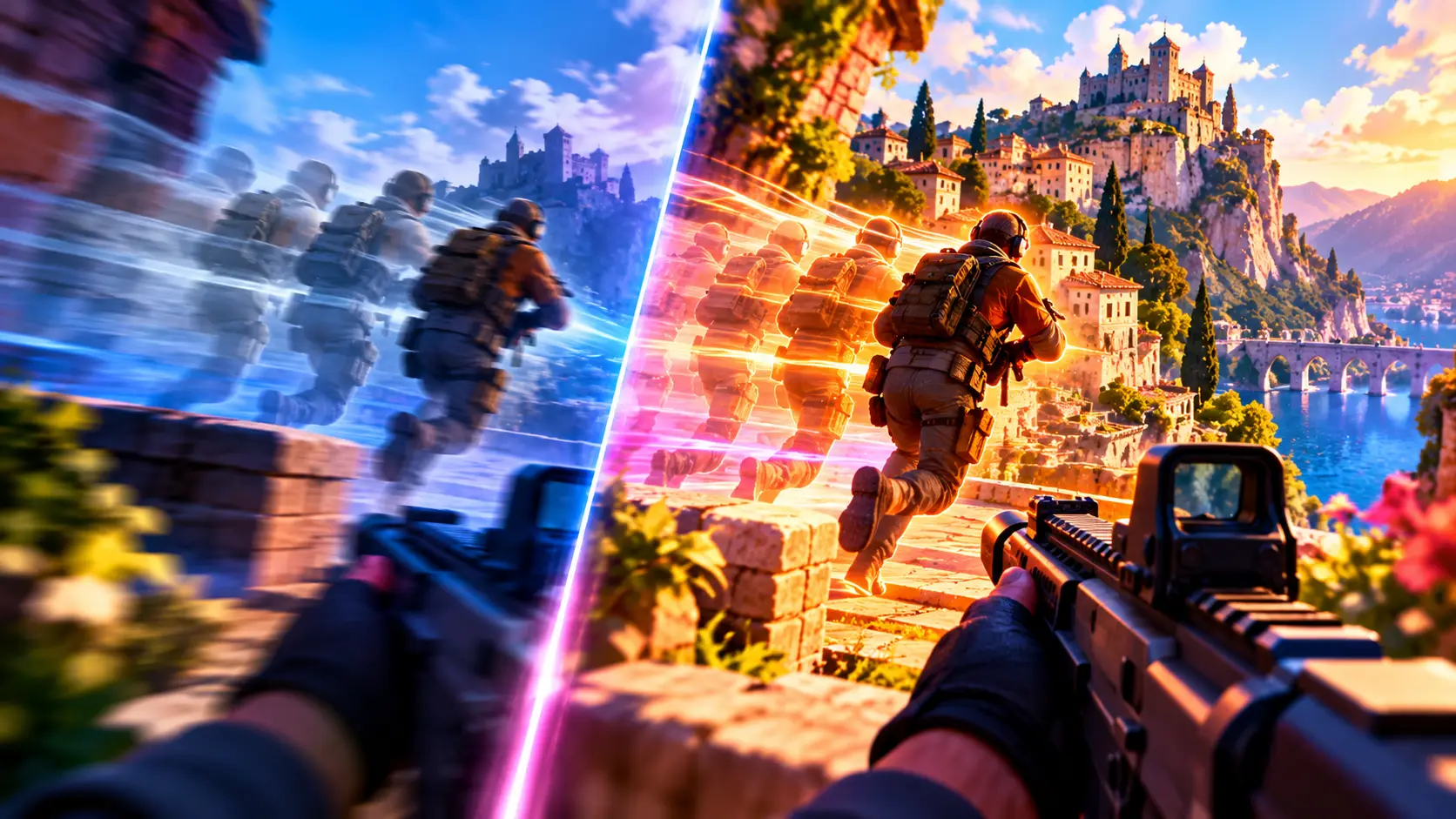
AI can make a game display far more frames per second—but that doesn’t mean its controls respond proportionally faster. The reason is frame generation: software creates extra in-between frames that aren’t the same as newly rendered game frames.
That doesn’t make the technology pointless. Smoother visuals can be a real benefit. But when comparing graphics cards or adjusting settings, it’s important to distinguish between how fluid motion looks on screen and how quickly a mouse click produces a visible response.
A high FPS counter doesn’t tell the whole story.
Upscaling and frame generation do different jobs
With upscaling, a game renders frames at a lower resolution. A reconstruction technique then turns them into images at a higher output resolution. That means the graphics card doesn’t have to render as many pixels directly.
Frame generation adds a different step. The system creates extra frames using information from the game and previously rendered frames. These additional frames increase the number of images your display can show.
Nvidia describes the two techniques separately in its DLSS documentation. They can work together, but their effects shouldn’t be lumped together.
Think of them as two distinct improvements: less work for each original frame, and extra frames inserted between original ones. Both can affect how smooth motion looks, but they don’t necessarily tell you the same thing about how responsive the controls are.
This is also different from AI characters or AI-generated content in games. This is about how a game is displayed—not what a character says or how a level is designed.
Why smoother visuals don’t mean lower latency
Several steps separate moving your mouse from seeing the result. The computer processes your input, renders the scene and sends the result to your display.
In its guide to Reflex and system latency, Nvidia explains how factors such as coordination between the processor and graphics card, as well as the frame queue, affect that delay.
An FPS counter measures something else: how many frames are processed or displayed per second, depending on the measurement. It isn’t a stopwatch that directly measures the time between your action and the result.
Generated frames can make motion look smoother. But they don’t automatically replace every step in which the game processes new input.
At the same time, latency-reduction technologies such as Reflex can improve the overall experience. So it’s also too simplistic to say frame generation always makes a game feel slower. The combination of settings—and the actual latency—matters.
The frame rate before frame generation still matters
A high final FPS figure can hide how many frames the game produces without interpolation. That’s why the base frame rate is a useful second number to check.
In its FSR 3 documentation, AMD stresses the importance of having enough performance before enabling frame generation. For this technology, the company recommends a starting point of around 60 frames per second. At lower rates, visual artifacts and a less comfortable experience may become more noticeable.
That recommendation isn’t a universal minimum for every current or future technology. But it shows why the final FPS figure alone isn’t enough.
Also check what a test means by “without frame generation.” Upscaling may still be enabled, so the game isn’t necessarily running at your display’s native resolution.
For a fair comparison, tests should clearly state the resolution, quality settings, upscaling options and latency-reduction technologies used.
How to judge the setting on your own PC
Choose a scene you can easily replay. Test it first without frame generation, then with the feature enabled. Keep the other settings as consistent as possible.
Don’t just watch the number in the corner. Move the camera, track a small moving object and pay attention to how the game responds to quick mouse movements. Check text, menus and sharp edges while things are in motion, too.
Then ask yourself two separate questions: Does the image look smoother? And do the controls feel responsive?
Which matters more depends on the game and your priorities. You may reach a different conclusion in a laid-back exploration game than in one where you need to aim quickly and constantly.
So don’t enable frame generation just because the counter goes up—and don’t dismiss it simply because some frames are generated. What matters is a better gaming experience, not just a more impressive number.

Popular news

Akamai launches Agent Sandbox to limit what AI code can do

OpenAI Launches GPT 6.1 Terra for Faster AI Agents at Half the Price

Anthropic Is Going Public: What Claude’s Numbers Reveal

Anthropic's IPO Filing Reveals $16.3 Billion in Revenue and the Cost of Growth

Microsoft Restructures Workforce with Voluntary Buyouts Amid AI Expansion

Microsoft Strengthens European Digital Sovereignty With New Cloud Controls
Latest comments
Loading