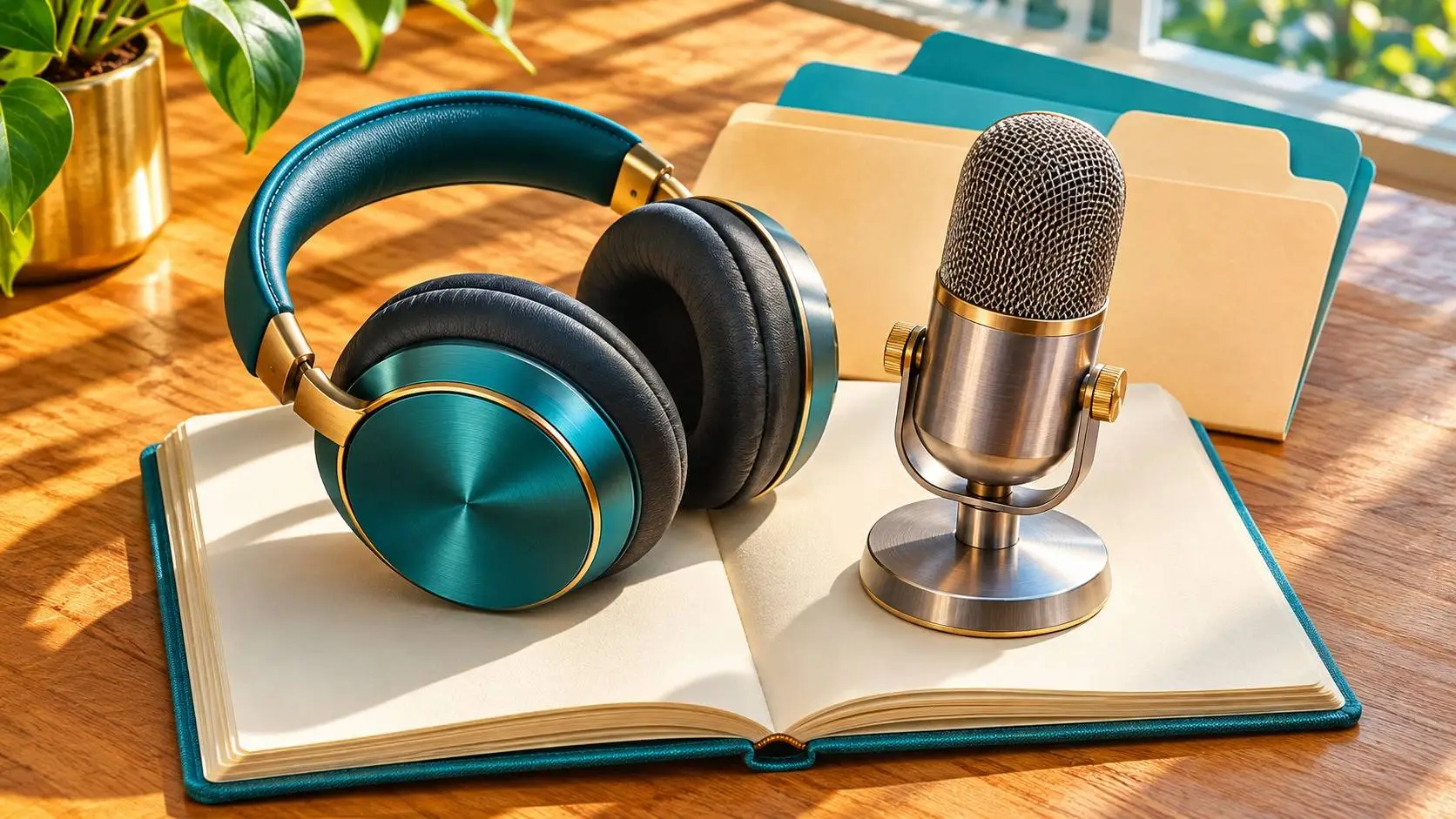
AI-generated illustration of listening to a summary while checking the source files.
Create a NotebookLM Audio Overview in Studio, then check what you hear against the files you put in the notebook. Start with a few sources and name the facts the audio must get right. Save the version you checked before you share it.
Google's help pages now call the app Gemini Notebook. The Audio Overview turns selected source material into an AI-made spoken summary. It can help a team get up to speed on a file set. A smooth voice can still miss a date, a limit or a change in plan.
Build a small source pack
Try the fictional library move in this guide. The notice says the reading room will close on March 12, 2027. The service memo says the book drop stays open. On March 13, staff aim to reopen at 10 a.m. if the work passes a safety check. The second file sets a condition the overview needs to keep.
Create a notebook and add the two text files. Give them names you can spot while you listen. Open each one to check that its text came through. If the old date and new date both appear, mark which file is current or take the old one out. A first pass with two clear sources is easy to check by hand.
Our NotebookLM guide shows how to add sources. Use the source import fixes if a file fails, and the NotebookLM limits guide if your account runs out of overviews.
Generate a NotebookLM Audio Overview
In Studio, use Audio Overview. You need edit access to create one. Google's Audio Overview guide lists four formats. Deep Dive lets two hosts explore the sources. The Brief gives a quick pass with one speaker. Critique reviews the work. Debate takes two sides.
Pick The Brief for the library exercise. Choose English if you want to use the answer key as written. Google says the short or long length choices are for English. Set a focus prompt such as Tell a visitor what is closed, what stays open and what could delay the reopening. State the date and time. Use only these two sources.
Generation runs in the background. Load the result from Studio after it is ready. If you see an error, check edit access, source import and your usage limit. This walkthrough follows the published controls. The library files and answer key are an exercise you can run in your account.
Check claims before you share the audio
Play the overview once. On the second pass, pause at each date, count and condition. Write down the time in the audio, the claim and the line that backs it up. A good pass keeps March 12 as the closure date, keeps the book drop open and puts the reopening behind the safety check.
If the overview says the room will open at 10 a.m., mark the loss of the condition. Add a tighter prompt, then make a new version and check it again. Keep the selected sources and prompt beside the file so a second reader knows what you checked. The worksheet includes a blank review block and an expected answer key.
The desktop help describes downloading the audio and sharing a link under the notebook's access rules. It also lists content restrictions that can block downloads. The mobile help distinguishes offline listening inside the app from saving an audio file. Before you share, check who can open the notebook and its sources. An audio file you send outside the app has its own access controls.


Popular news
Google brings Gemini to Android Go phones with 2GB RAM

XPeng Bets Everything on Physical AI and Robotics at Upcoming Tech Summit

AI Boom Will Push Data Center Carbon Emissions Up 70 Percent by 2030
Google adds HelpBench to Gemini 4 Carbon safety tests
Microsoft recruits more than 40 groups to make AI agents auditable